
New in Vision: fly through orders, keyboard-only
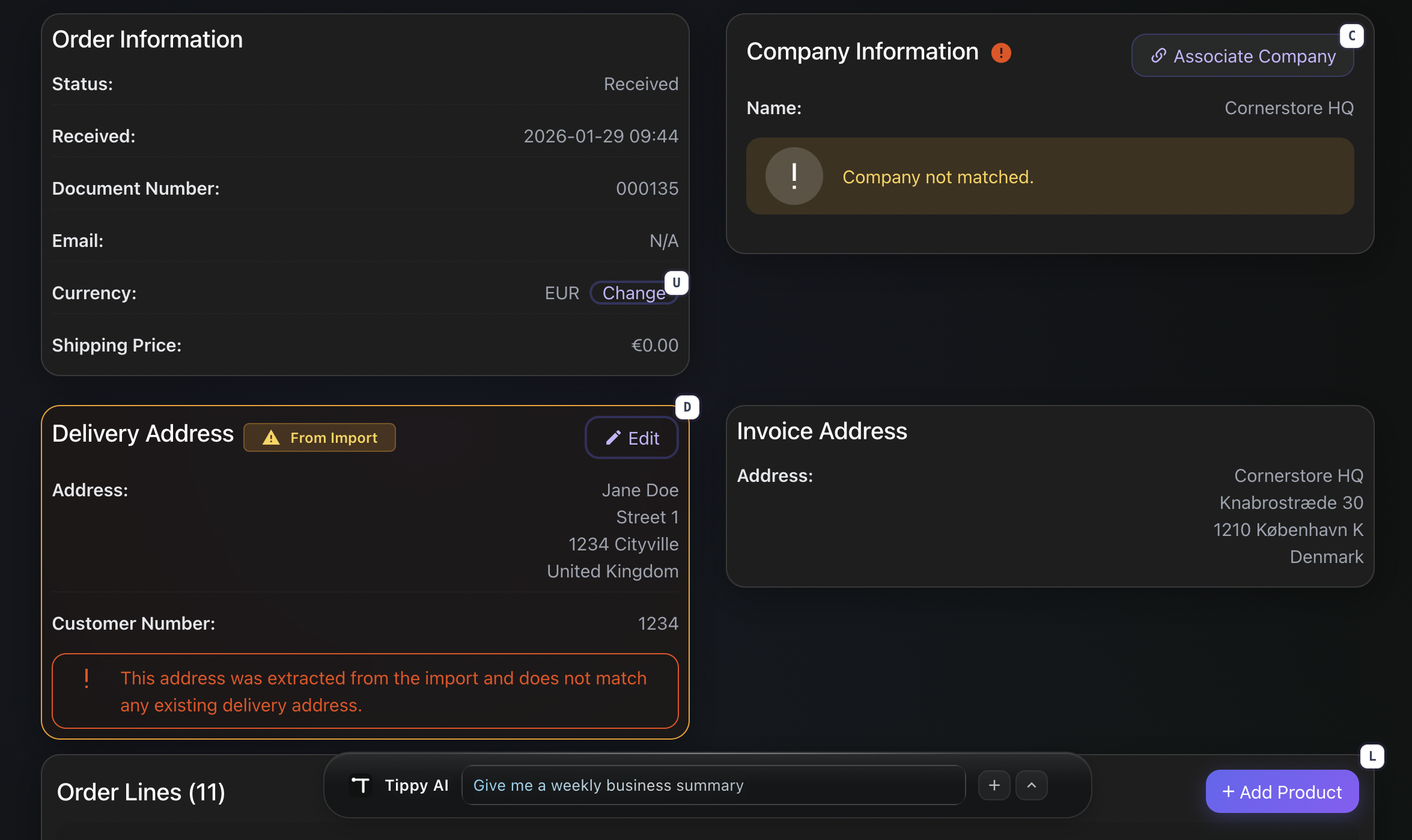
Hold SHIFT and every button on the Vision order screen reveals its shortcut key. No mouse, no memorising — see the key, press it, done. It is the foundation for keyboard-first navigation across all of Turis.
Processing orders is a rhythm: open the order, scan the lines, fix a product match, set the delivery address, accept. Do it once and it is nothing. Do it eighty times a day and every click is a tax.
So we did something about it. The Vision order screen is now fully keyboard-driven — and the best part is you do not have to memorise a single thing.
Hold SHIFT. See every shortcut.
The whole feature rests on one move: hold the SHIFT key, and Turis labels every button on screen with its key. A small badge appears on each action — Edit, Retry, Accept, Reject, view files. See the key, press it, done. Let go of SHIFT and the badges vanish.
That is the trick that makes it effortless: there is nothing to learn upfront. Whenever you forget a shortcut, SHIFT brings the whole map back, one keypress away.
Step into a section
Some keys do not fire an action — they take you into a part of the screen, like the order lines or the delivery address. Once you are inside, the shortcuts adapt to that section: arrow keys move between lines, Enter edits, and the buttons there get their own keys. Press Escape to step back out. It is like zooming in on the part of the order you are working, without ever touching the mouse.
Pop-ups that behave
Picking a product, a configuration, a delivery address, or a buyer? Just arrow up and down and press Enter to choose. Every dialog works the way your fingers expect — Enter confirms, Escape cancels — and the right field is focused the moment it opens, so you can start typing immediately.
What it means for you
- Less mouse, more speed. Common tasks collapse into a couple of keystrokes.
- Nothing to learn upfront. Hold SHIFT whenever you forget; the keys are always one press from being revealed.
- Fewer mistakes. A shortcut only ever triggers an action you can actually see, and pop-ups never reach through to the screen behind them.
What’s next
This is the foundation for keyboard-first navigation across all of Turis. We started with Vision orders because that is where speed matters most — and we will be rolling shortcuts out to more of the platform over time.
